

URBANO PROFILE ON CIVIL3D -
HOW TO OVERCOME RESTRICTIONS
OF THE OPERATING SYSTEM

Urbano profile on Civil3D - How to overcome restrictions
To be able to install Urbano properly, it is necessary to run Urbano installation “as Administrator”. However, sometimes even that will not be enough. Namely, if a user account has restricted rights, the installation might not be complete, even with the administative password. Or, it can happen that Urbano shortcut on Civil3D will not function properly.
Why is that?
Well, Urbano requires administrative rights, as it is not a standalone software. It runs only on AutoCAD or Civil 3D. It also requires some additional libraries of functions to be able to function properly. That is why the installation process must be allowed to install additional libraries (in some cases), but also to copy profile of Civil 3D and add Urbano files to it.
So, what is a Civil3D profile?
Many programs have the option to run various “profiles” – group of predefined settings that are loaded automatically when you run the program with a particular shorcut.
It is no different with Civil3D. Once you install it, you will notice multiple shortcuts that have different names, and also, they will run Civil3D with different profiles – usually IMPERIAL, METRIC and Civil3D as AutoCAD:
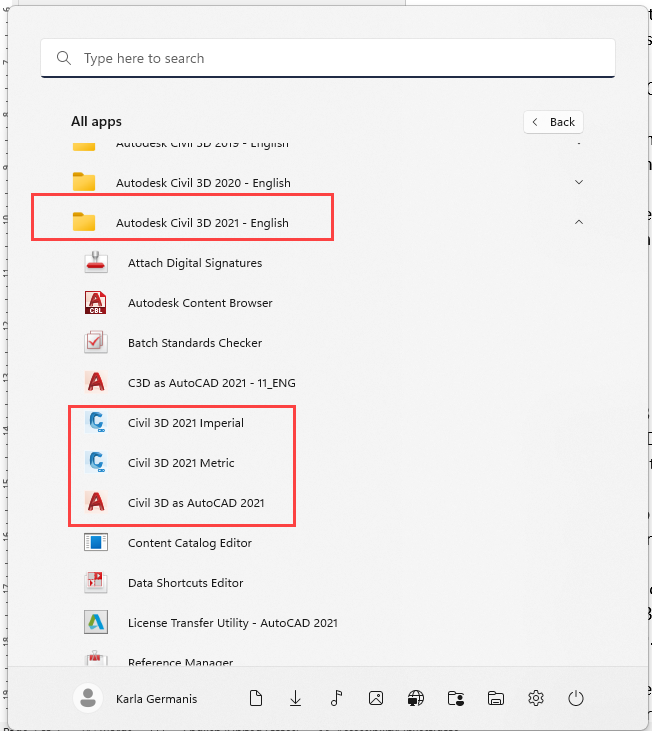
If you reach this shortcut and go to PROPERTIES, you will notice that this particular profile is placed in TARGET:
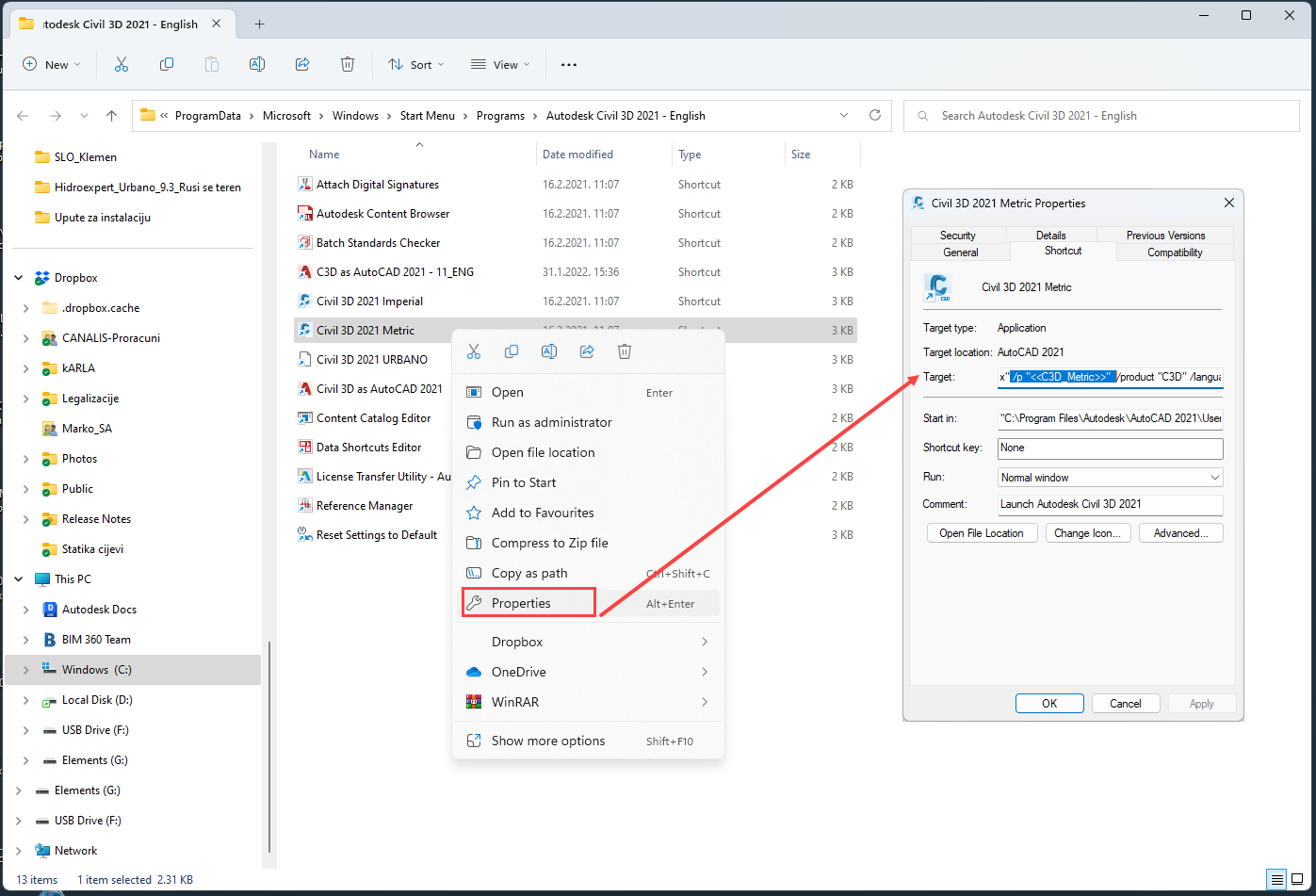
So, Civil 3D will start with this profile, and it will load units, catalogs and default templates for metric system.
When you run Civil 3D with this shortcut, and go to OPTIONS, you will notice that this profile is set as CURRENT:
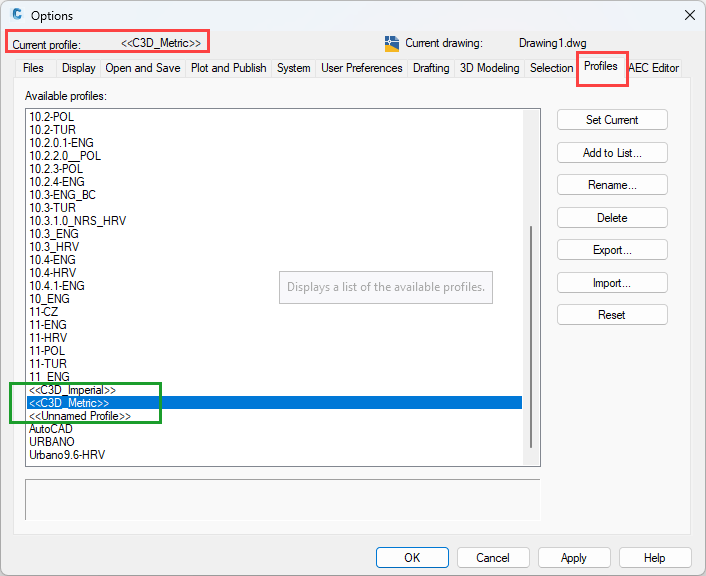
Profiles shown in brackets are original, made by Autodesk:
<<C3D_Imperial>>
<<C3D_Metric>>
<<Unnamed Profile>>
When a Civil3D profile is copied without administrative rights, it doesn’t function properly – it runs plain AutoCAD. Civil3D profile definition is stored in the Registry (see picture below), and to copy it, you (or a program) must be able to access the registry.
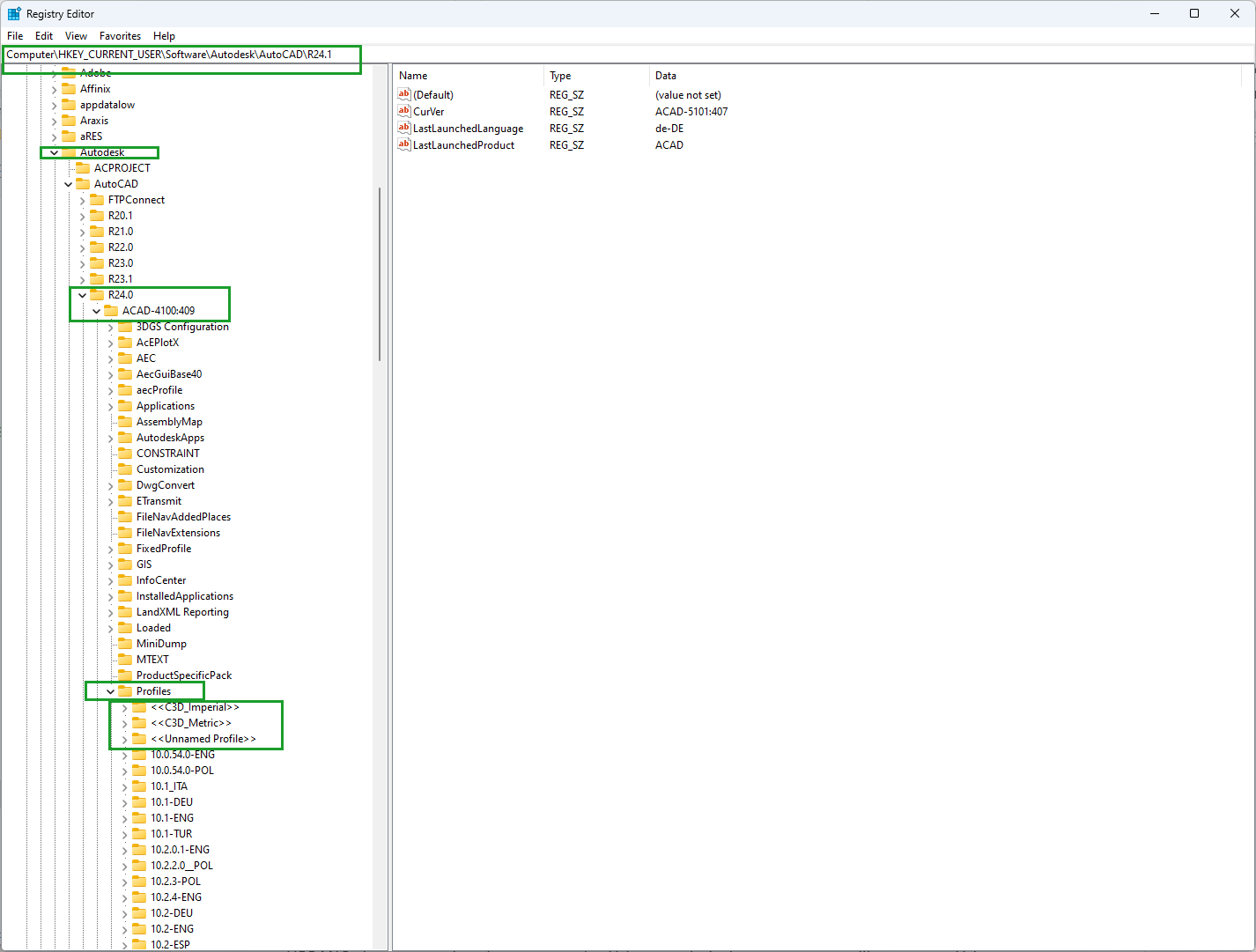
So, the best practice is to give administrative rights to the user, of course, along with the Administrator’s supervision.
If this is not possible, then it will be necessary to do it by following steps listed in following pages.
How to create new profile on civil 3d and a new shortcut
- Enter the computer with the Administrator account
- Create new profile of Civil3D with new name. Do it this way:
- Open Civil3D with standard shortcut (Civil 3D Metric) and go to OPTIONS:
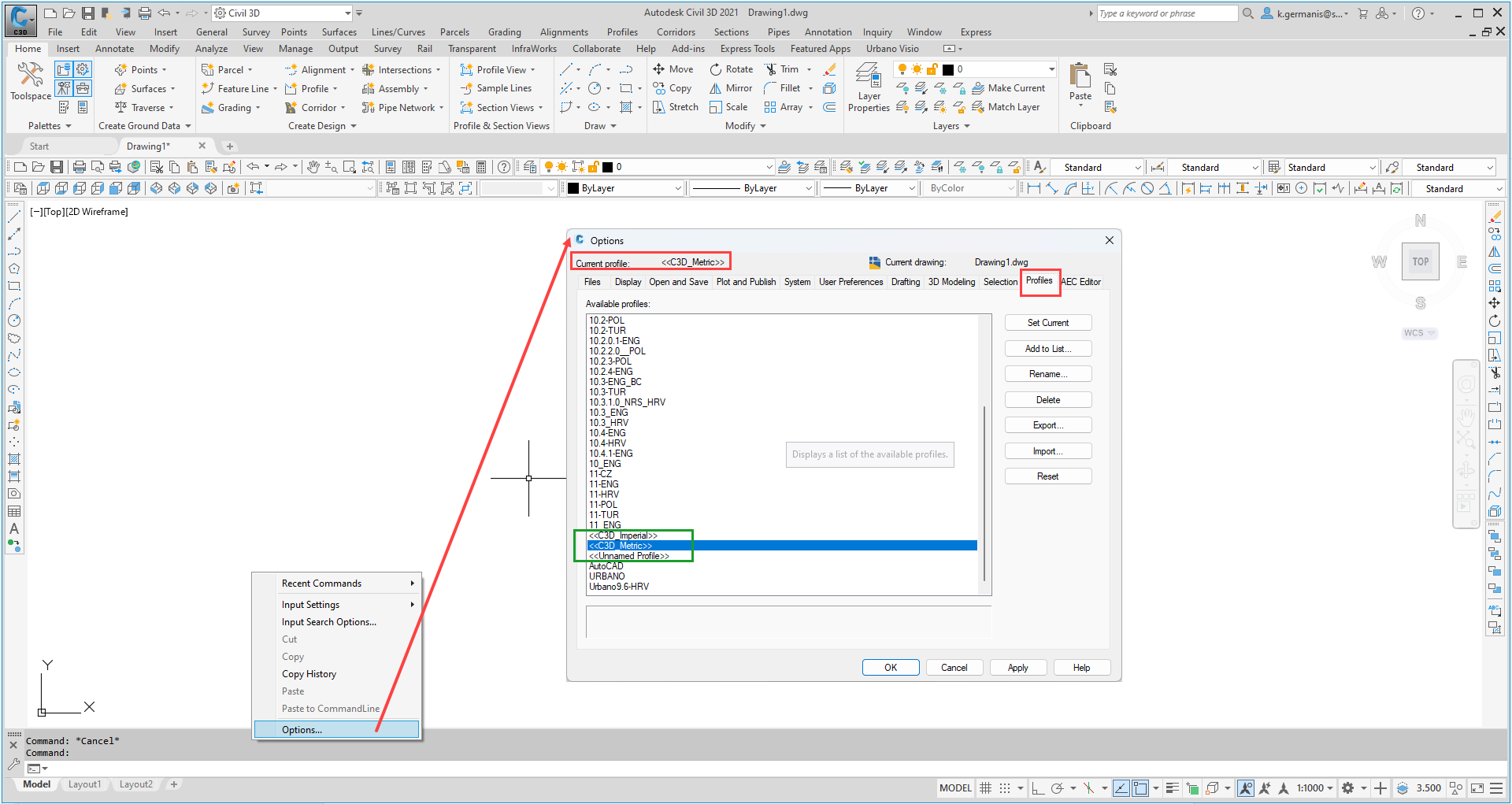
- <<C3D_Metric>> will be set as a current profile. Select it on the list (so that it becomes blue) and click on the button ADD TO LIST:
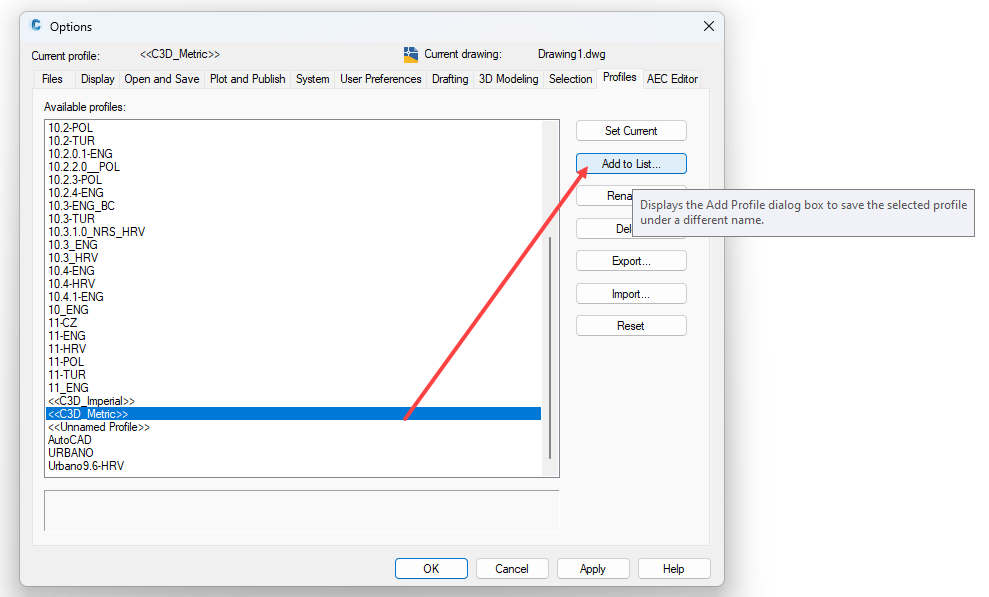
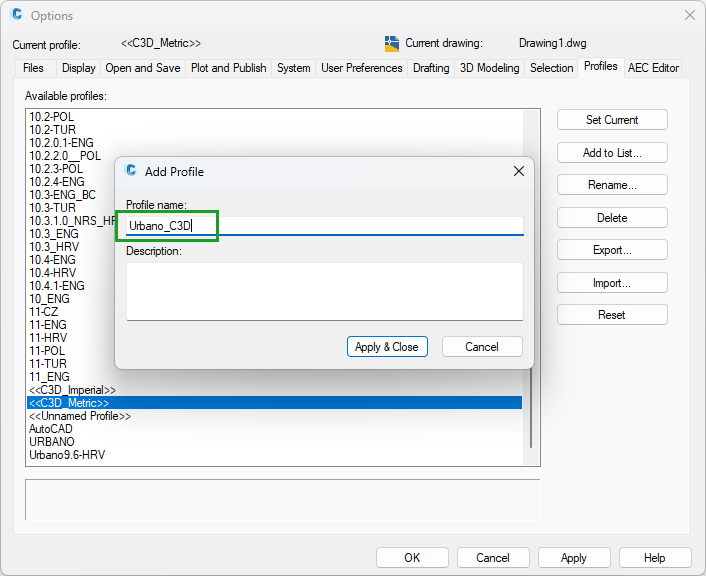
- You will be able to add new profile – name it URBANO or similar and click Apply&Close:
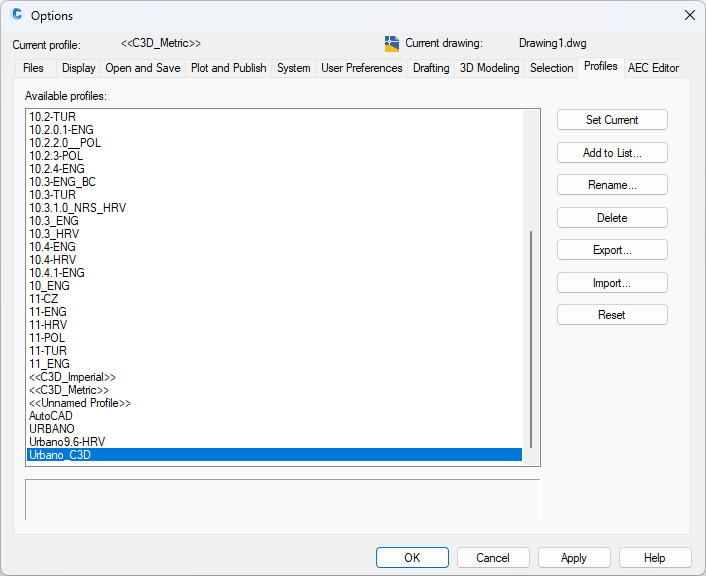
- Program will add this profile on the list:
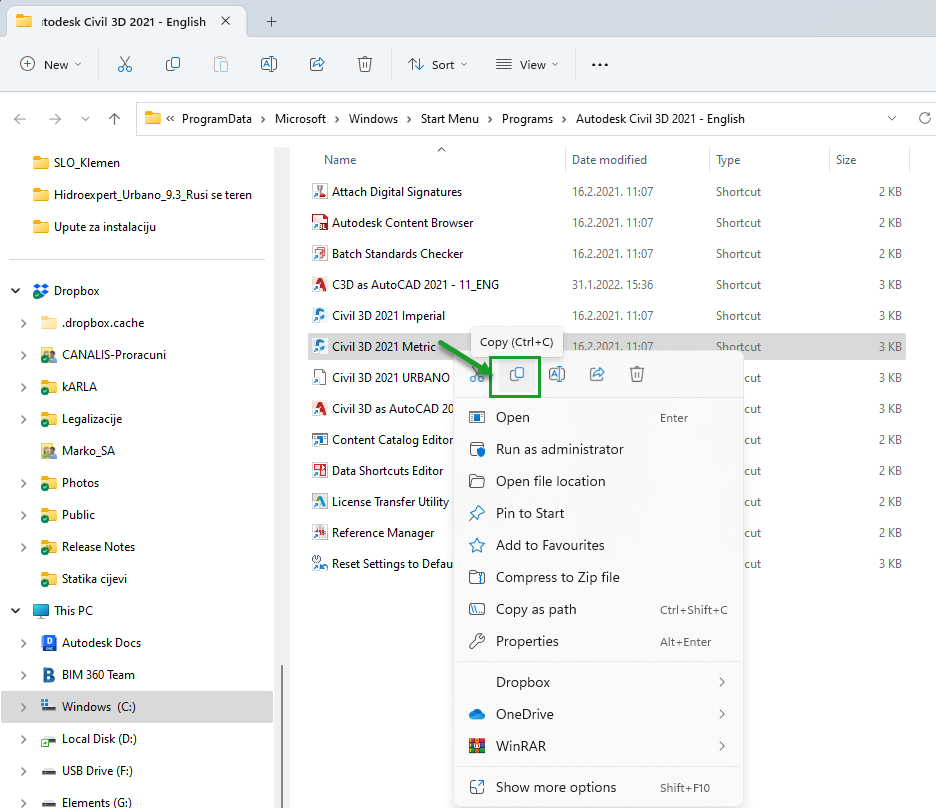
- Now, copy original Civil 3D shortcut that is placed on the Desktop (or in folder such as C:\ProgramData\Microsoft\Windows\Start Menu\Programs\Autodesk Civil 3D 2021 – English), and paste it back on the Desktop (or that particular folder) and rename it to URBANO. Make sure to use command COPY on a menu that you will run with mouse right – click, do not use COPY from the keyboard (CTRL+C), as sometimes it doesn’t copy it properly. Same with the PASTE command.
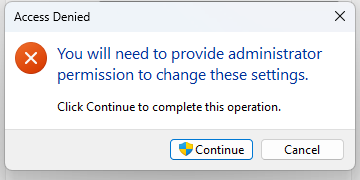
If the program requires administrative confirmation for this operation, approve it:
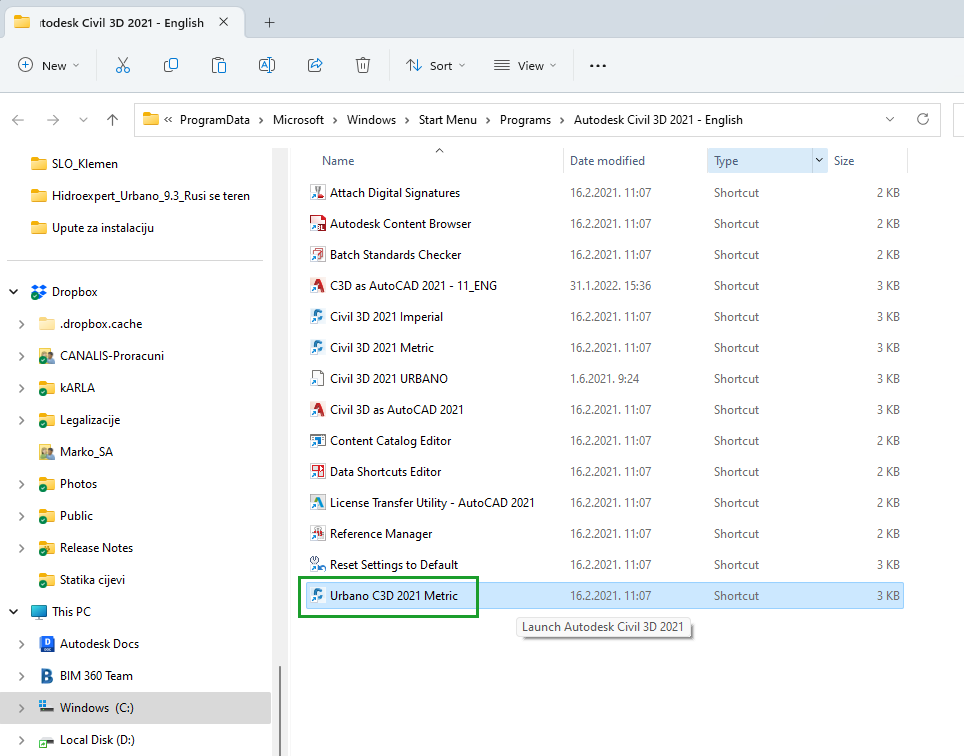
- Now rename this new shortcut to Urbano C3D, or something similar:
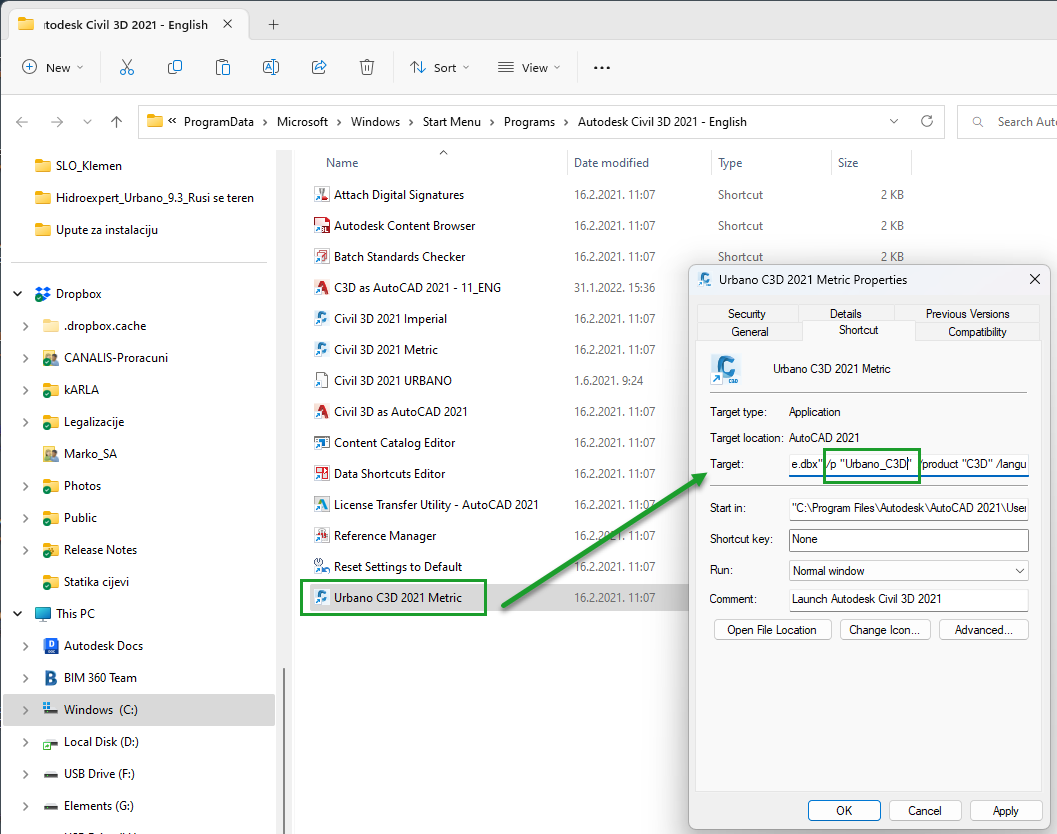
- Call new profile from new shortcut, so that the customer (or Urbano technical support personell) can set up Urbano to be loaded in Civil3D when you run it with this particular shortcut.
Go to Properties, and in Target, replace string /p “<<C3D_Metric>>” with
/p “<<Urbano_C3D >>” , or whichever name you have set for new profile:
Probably you will have to confirm this action as well:
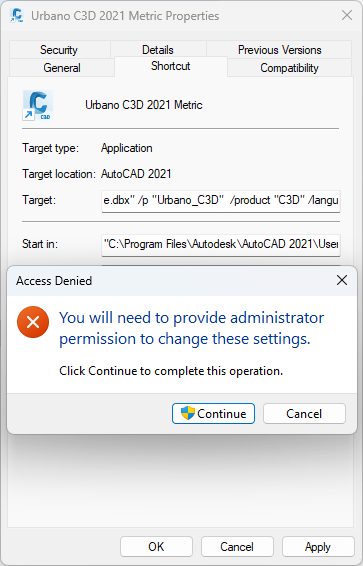
- After that, the user can log it to their account, and they should be able to reach this shorctut. They must simply run it, go to Properties and add Urbano path to this particular profile:
- Go to FILES tab – first froup (Support file search path) – expand it and clik ADD:
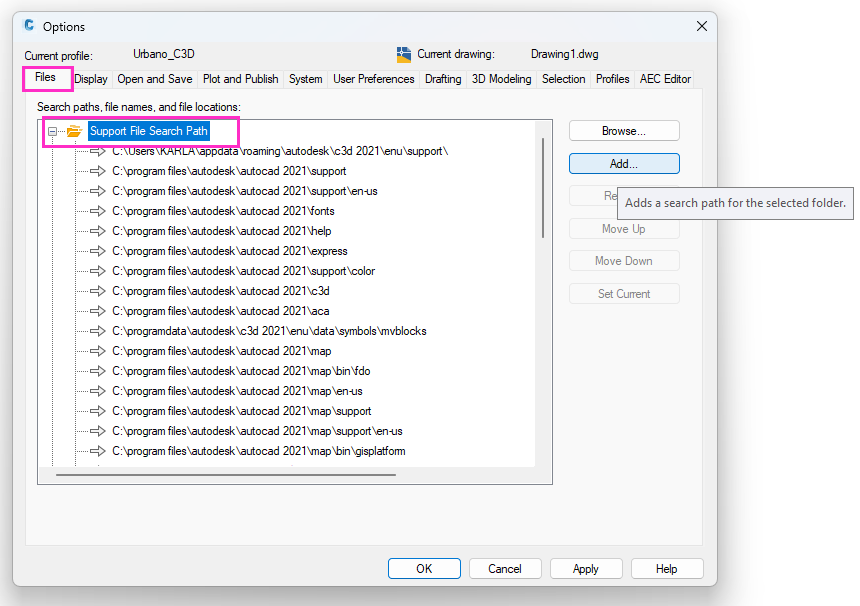
- Find Urbano installation folder, copy it and add it to the list of paths:
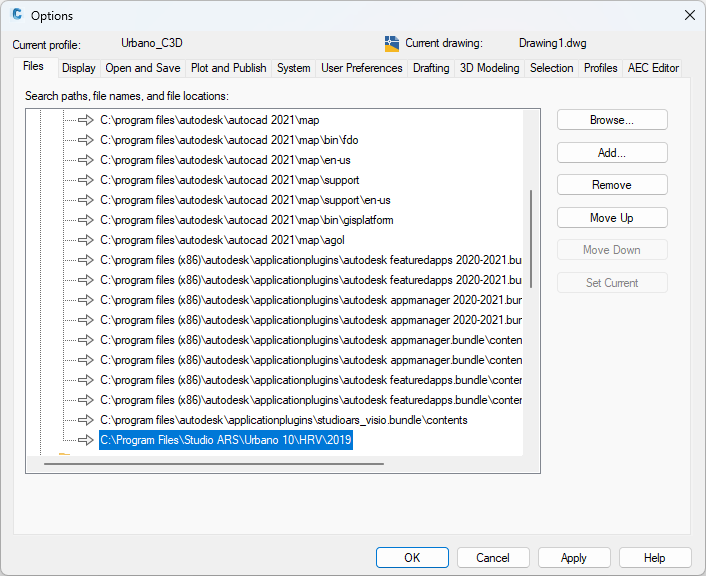
IMPORTANT: Urbano path must be of this format:
C:\Program Files\Studio ARS\Urbano 10\HRV\2019
C:\Program Files\Studio ARS\URBANO VERSION\LANGUAGE VERSION\CAD LOWEST SUPPORTED VERSION
- Then add it to TRUSTED LOCATIONS as well:
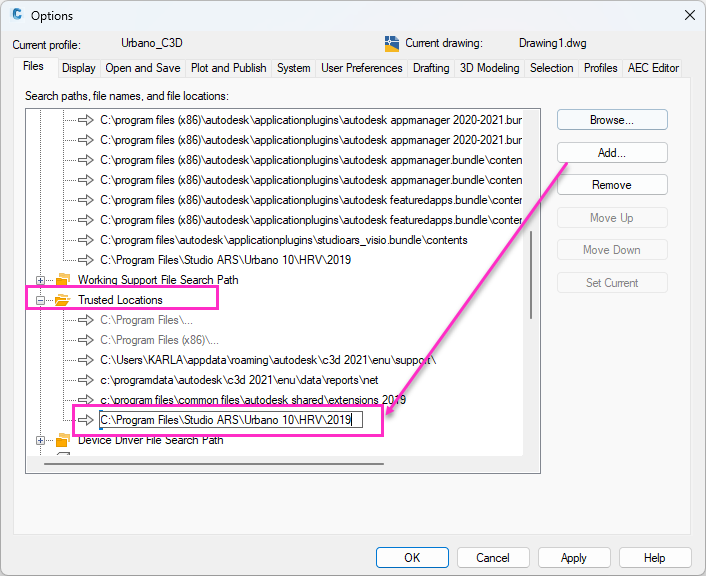
- Program will require you to confirm it – click CONTINUE. Maybe it will be necessary to enter admin password. If yes, enter it.
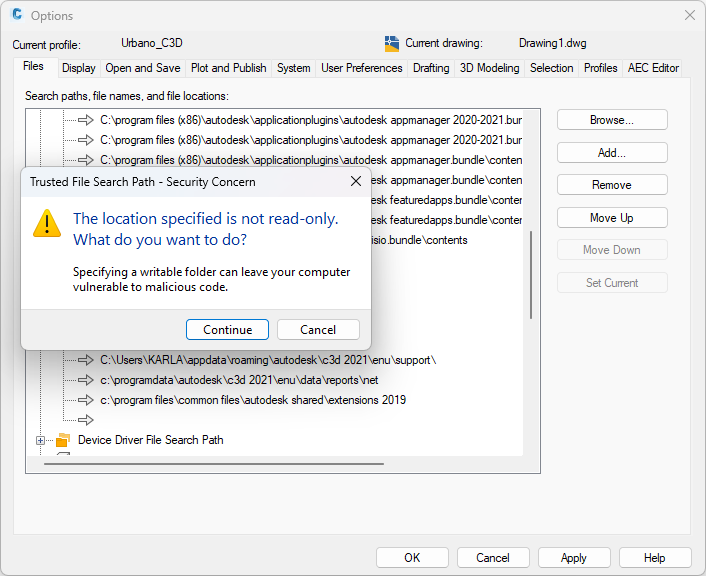
- Press APPLY and then OK.
- Close Civil 3D and run it again by using this shortcut. It should load Urbano automatically.
- Original Civil 3D shortcut should not load Urbano.
This way, there will be separate shortcut for Civil 3D, and a separate one for Civil 3D WITH Urbano.
I hope that this prodecure will be possible to follow, and that it will work out for you. There is no guarantee, as there are various types of restrictions on Windows operating systems, and it is not possible to predict all possible obstacles that can appear.
In case that you need additional help, please contact me. I can connect and help the administrator to set it up.
Was this article helpful?
That’s Great!
Thank you for your feedback
Sorry! We couldn't be helpful
Thank you for your feedback
Feedback sent
We appreciate your effort and will try to fix the article